Quick Start – Helpdesk Contact Center
Curious how 2ConnectMe looks on a real website? Open our live demo and try it yourself. See voice chat, video chat, screen sharing, recording, and live customer screen view in action — instantly, with no signup.
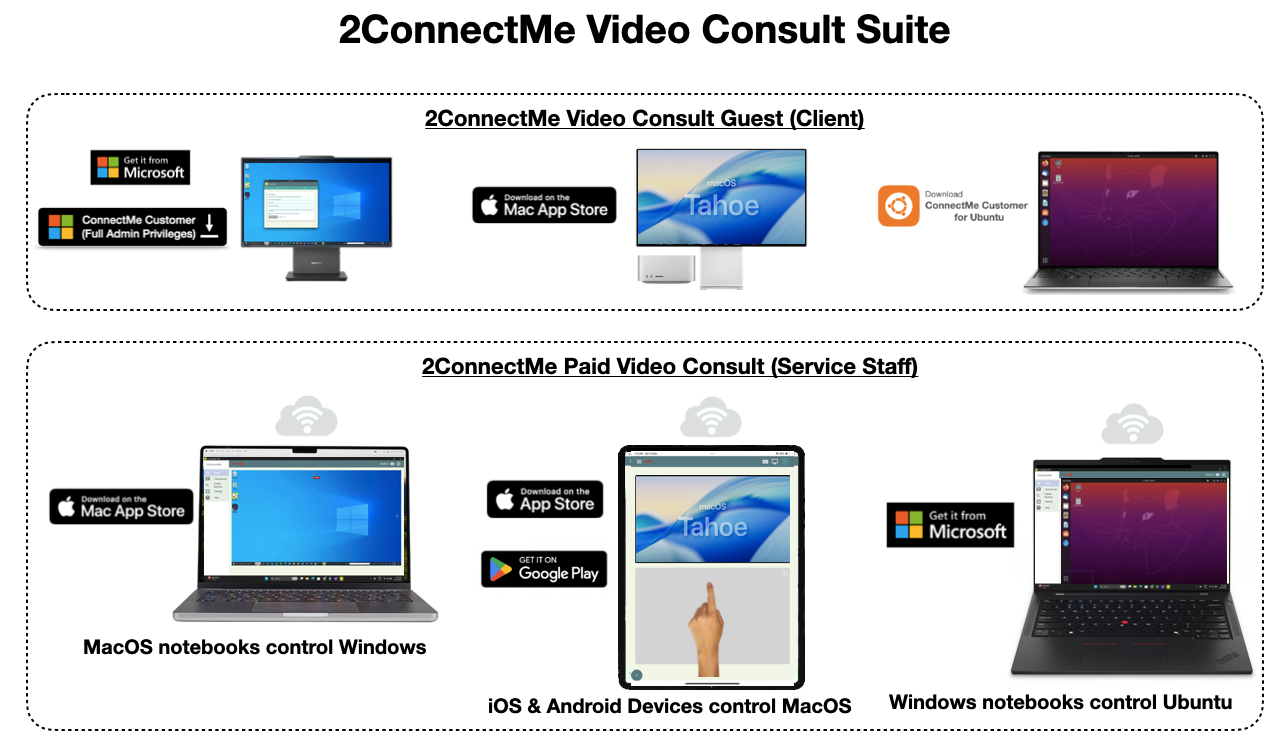
2ConnectMe Video Consult Suite is composed of apps for client and service staff. Both apps are supported in running on browsers.
If service staff needs to control remote client desktop, the client desktop must be with “ConnectMe Video Consult Guest” app installed.
Please take note that we are in the process changing the app name in app stores.
“Remote Support Agent” ==> “Paid Video Consult”
“Remote Support Customer” ==> “Video Consult Guest”
The video helpers below are with the old name while the content are still valid for demonstration purpose. In case you could not find the updated name “2ConnectMe Paid Video Consult” and “2ConnectMe Video Consult Guest” in the app store, please search the old name “ConnectMe Remote Support Agent” and “ConnectMe Remote Support Customer” respectively.
Quick Start Steps
- Register as 1st service staff, as an administrator account, through browsers URL link. The detail step by step documentation is in “Basic Setup in 5 Minutes” here. Or on service staff devices, either desktops or mobile, download, install and register “2ConnectMe Paid Video Consult” app from App Store. Choose “Paid Consultation Profile” type of account for registration.
- Logon and keep “Online / Waiting for new chat” status of 2ConnectMe after successful registration above.
- On your client desktop, either Mac or Windows, download and get installed “ConnectMe Video Consult Guest” app from Apple App Store or Microsoft Store. In case your client desktop on Linux Ubuntu, please download from 2connectme.com directly.
- Start Remote Control: Launch “ConnectMe Video Consult Guest” app and input the registered staff email address to connect to service staff agent.
Step 1: 2ConnectMe Paid Video Consult
It only needs registration once for all the mobile and desktop platforms. For detail step by step, please refer to “Basic setup in 5 minutes” here. In addition, registration is also avaiable through the app in app store below.
Install “2ConnectMe Paid Video Consult”on staff staff device
The app is on the process of changing the name from “ConnectMe Remote Support Agent” to “2ConnectMe Paid Video Consult”. You may need to search the old app name “ConnectMe Remote Support Agent” in case of “2ConnectMe Paid Video Consult” being reviewed by App Store. The video helper below is still with the old app name for the sake of illustration purpose only for the time being. Please ensure you select “Paid Consultation Profile” for registration.


Step 2: 2ConnectMe Video Consult Guest
The app is on the process changing the name from “ConnectMe Remote Support Customer” to “2ConnectMe Video Consult Guest”. You may need to search the old app name “ConnectMe Remote Support Agent” in case of “2ConnectMe Paid Video Consult Guest” being reviewed by App Store. The video helper below is still with the old app name for sake of illustration only for the time being.
For Microsoft Windows, there is an another download from our own 2connectme.com website in additional to the one from Microsoft store.
Due to secruity concerns, any app from Microsoft store comes with a lot of restrictions on remote controls, particularly, without the priviledge to perform admininstration tasks.
For those client desktops with critical tasks pending for service staff agent to perform, e.g. help install another app on client computer, just click the button below, with Full Admin Privileges below, to download the app from our 2connectme.com website directly.
Install “ConnectMe Video Consult Guest” app on client desktop
Download “2ConnectMe Video Consult Guest” on client desktop





ConnectMe Customer on browsers (without Remote Control capabilities)
Video helper for installation from Microsoft Store
Get “ConnectMe Video Consult Guest” from Microsoft Store
Video helper for installation from Apple App Store (MacOS)
Get “ConnectMe Video Consult Guest” apps from Apple App Store (MacOS)
Step 3: Usage Guides
Remote Control Client Desktop on Windows (Unattended Mode)
Remote Control Client Desktop on Windows (Unattended Mode)
Remote Control Client Desktop on Mac (Unattended Mode)
Remote Control Client Desktop on Mac (Unattended Mode)
Gestures on 2ConnectMe Paid Video Consult (iPad) & soft-keyboard usage (Unattended Mode)
ConnectMe Paid Video Consult (iPad) gestures and soft-keyboard usage usage (Unattended Mode)
Step 4: Advance Functions

To start consultation, service staff could send email with URL link for client to join the chat while keeping anonymous identity.
“Unattended Mode” allows the local desktop to be controlled without client interaction.

Try to restore or wait for the online status before timeout, i.e. 90 seconds. The timer and charges will be automatically adjusted accordingly.

Video recording is allowed after obtaining consent from client during the chat or agreeing to video recording at unattended mode.