2ConnectMe Video Consult Guest (Full Admin Privileges) for Windows
2ConnectMe Video Consult Guest (Full Admin Privileges) app for Windows is downloaded from our 2connectme.com directly. It is with more advanced functions. It is free from the restrictions imposed on the same app from Microsoft Store such as,
- It is still possible to share with remote ConnectMe Agent service staff even at Lock Screen, User Account Control (UAC) prompts and Windows Logon screen.
- With activation of “Automatic startup whenever client computer restarts” and “Unattended Control Mode” settings, client is no longer needed to sit in front PC to wait for service chat. Client only needs to turn on the PC and let service staff initiates the connection for remote control to trouble shoot any issue of the PC.
Download 2ConnectMe Video Consult Guest
Click below to download 2ConnectMe Video Consult Guest (Full Admin Privileges)

Install on Windows desktop
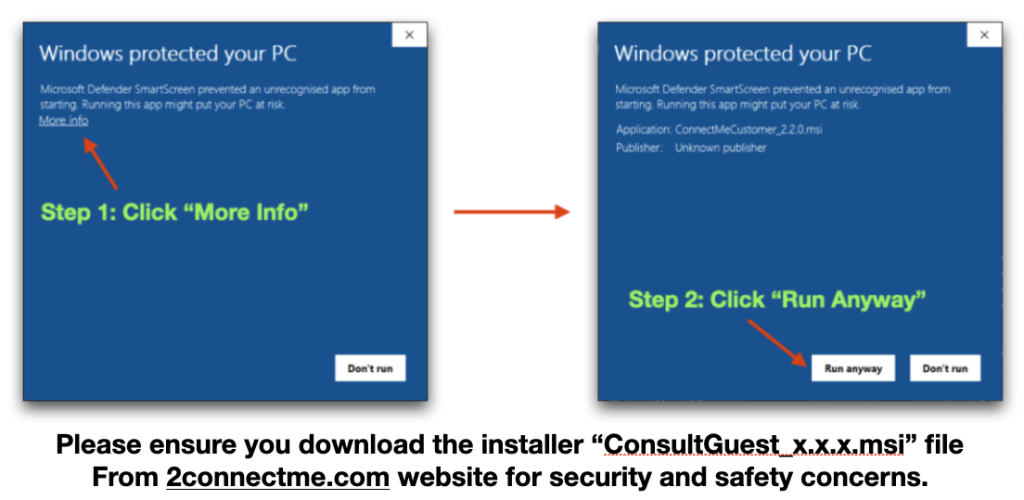
After downloading, go to downloads folder, select the downloaded ConsultGuest_x.x.x.msi file, where xxx is the version information, and click to start installation directly. Windows sometimes prompt warnings of “Unknown publisher” risk. Even with such warning, if such ConsultGuest_x_x_x .msi file is downloaded from our 2connectme.com website, i.e. the download button above, it is safe to install and use in production service. For reference only, please take note that the following warning screen was taken from the previous name of the same app, i.e. “ConnectMeCustomer_x.x.x.msi”. The current name is “ConsultGuest_x.x.x.msi”.
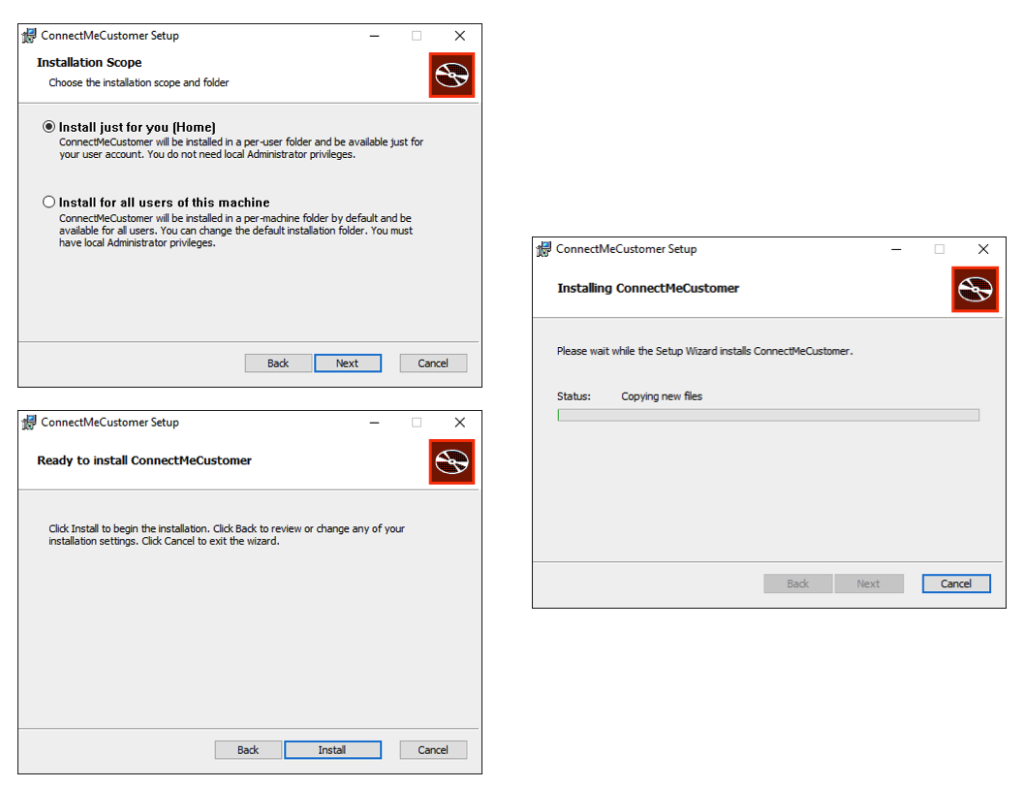
Acutal Installation in progress
The actual installation starts after bypass the Windows firewall warnings above. During installation, select the options for your own needs or accept the default options to follow the installation steps below.
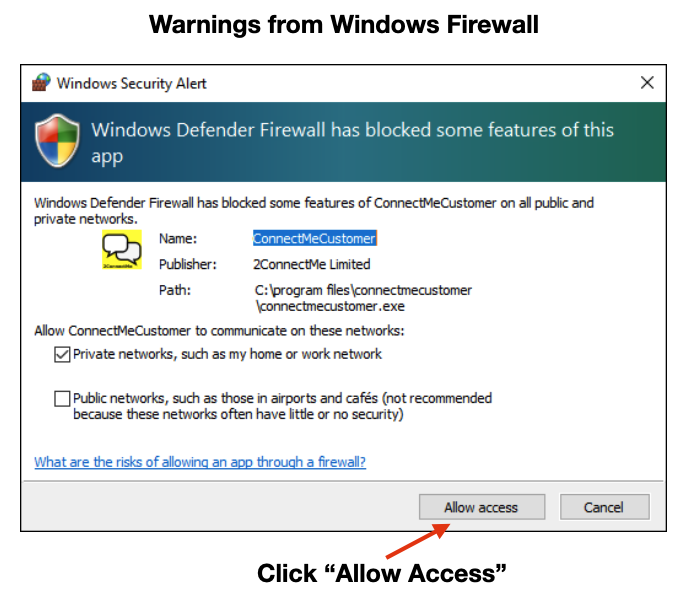
Window Firewall warnings on 1st startup
After successful installation, Windows firewall warnings will happen for the 1st time startup 2ConnectMe Video Consult Guest as screen below. Just click “Allow Access” to bypass such warnings.
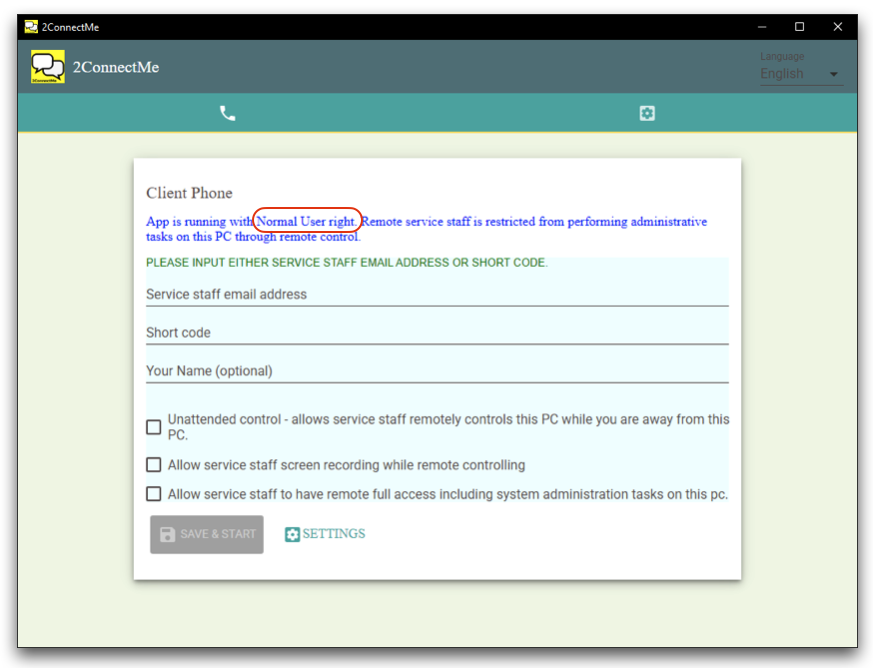
Successful startup 2ConnectMe Video Consult Guest – Normal User right
After successful startup, the following initial screen indicates the app is running with normal user right. It means the app is also running with the same restrictions of the app from Microsoft Store. ConnectMe Agent service staff cannot control this ConnectMe Agent PC at the Logon screen, User Account Control {UAC) prompts and Lock Screen.
2ConnectMe Video Consult Guest with Admin Privileges
If you needs “2ConnectMe Paid Video Consult” service staff to control “2ConnectMe Video Consult Guest” PC at Logon Screen, User Account Control (UAC) prompts or Lock Screen, it requires to “Run as administrator” in launching the app. Just right click the app icon and select to run as administrator as screen below.
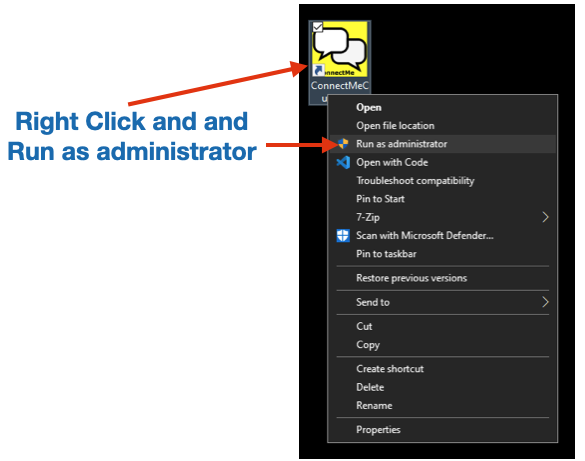
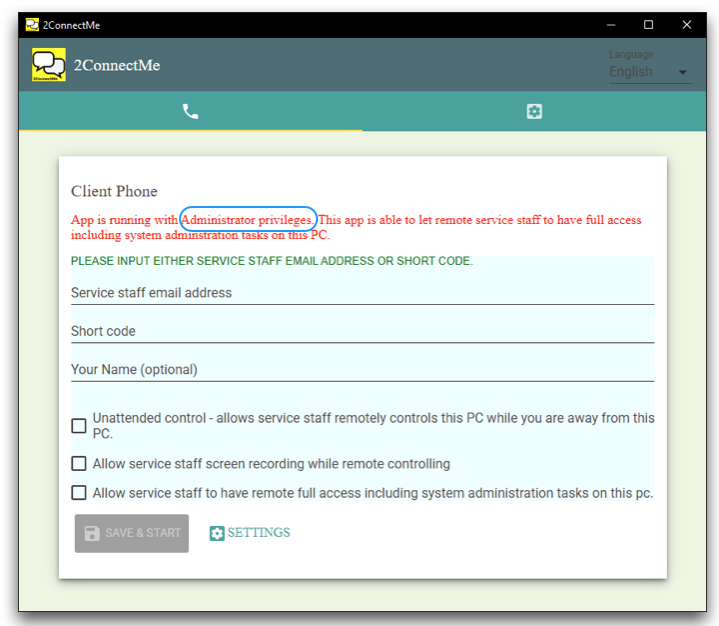
2ConnectMe Video Consult Guest runs as administrator with screen below indicating the “Administrator Privileges”.