Usage Cheat Sheet – Service Staff

Ensure the agent is on “ONLINE” status to tell system that agent is ready for answering a new chat.

To start consultation, agent could send email with URL link for client to join the chat while keeping anonymous identity.

2ConnectMe will calculate the charges according to the duration at the end of chat automatically.
“Unattended Mode” allows the local desktop to be controlled without client interaction.
Video recording is allowed after obtaining consent from client during the chat or agreeing to video recording at unattended mode.
Agent could send Payment Request to client to ask for payment either at the beginning or end of the chat.

Try to restore or wait for the online status before timeout, i.e. 90 seconds. The timer and charges will be automatically adjusted accordingly.
Chat Starts
Availability to handle new chat
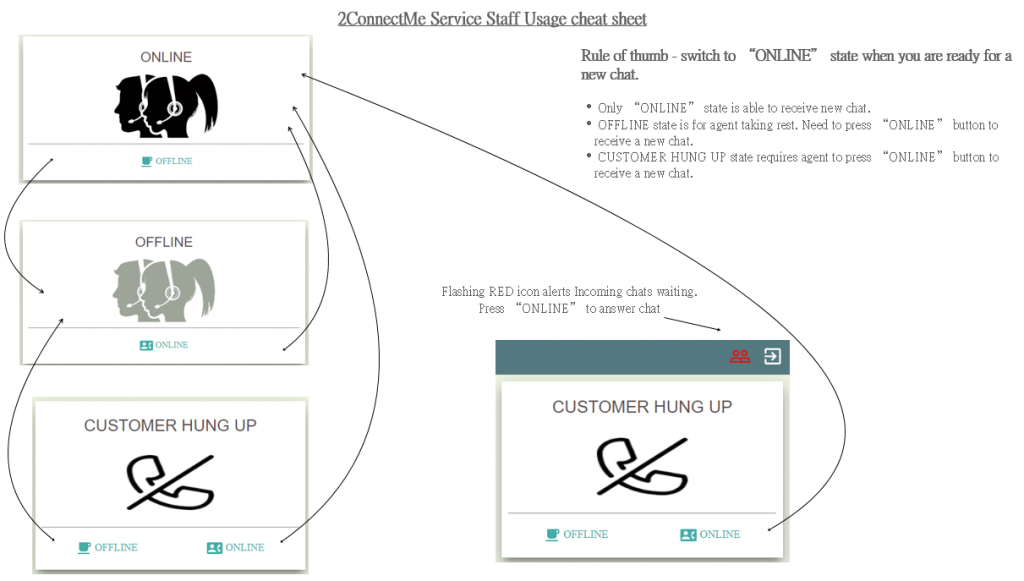
It is important to understand the following 3 service staff agent states which decide if agent is ready to handle a new chat.
- ONLINE – agent ready for handlng new chat.
- OFFLINE – agent is NOT ready. NO new chat will be assigned.
- Customer HUNG UP – client hung up. Agent is free to choose “OFFLINE” or “ONLINE”.
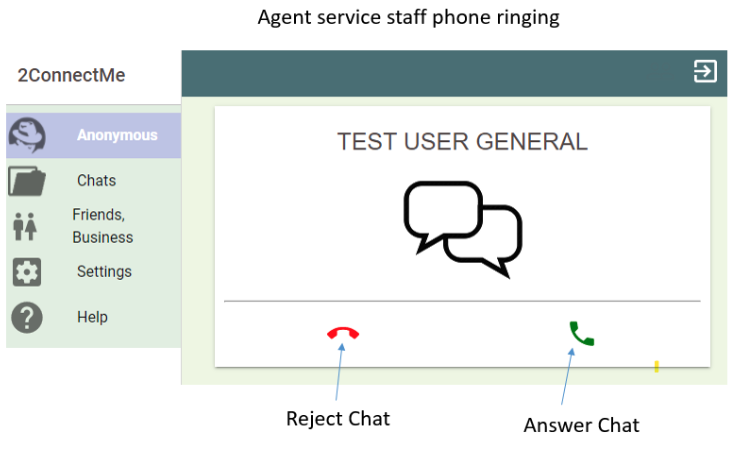
New Incoming chat
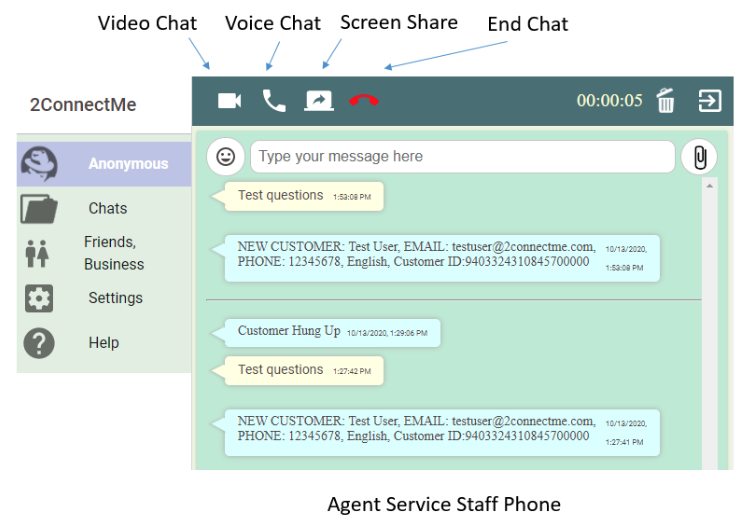
Video Voice Screen Share buttons
Automatic Charge
Charging Scheme
Automatic Charge will let 2ConnectMe calculate the actual service fees and post the charges to the client pre-authorised credit card automatically at the end of chat. Therefore, service staff is required to setup his own pricing scheme. Such pricing scheme could be setup in 3 different settings with precedence as follows.
- Invitation Form
- Agent Private Profile
- Chat room level
Setup Pricing Scheme on chat room settings by administrator
Pricing scheme on chat room settings is with the least precedence. It is used as “Standard Price” for client to meet service staff through this chat room. It could be setup only after linking your stripe account with 2ConnectMe stripe account so that your service revenue, after deducting service fees from 2ConnectMe and Stripe, will be directly deposited to your stripe account automatically in real time. Such setup details here.
Only administrator, the first user registering the 2ConnectMe account, could setup the chat room configurations.
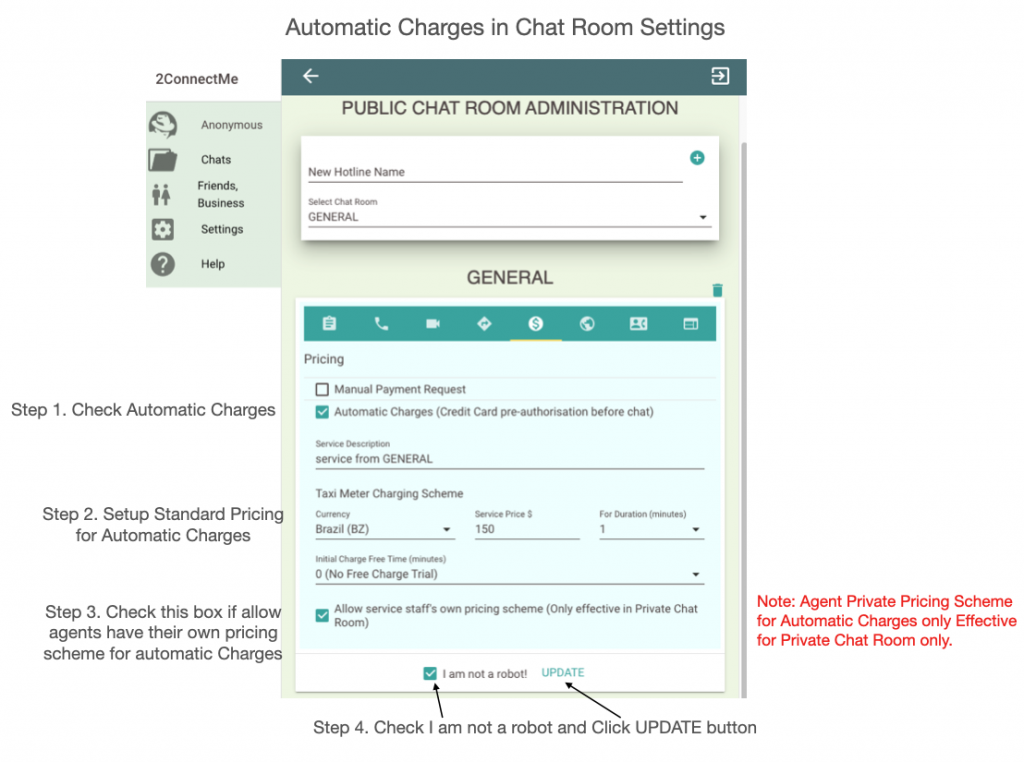
It must check the option “Allow service staff’s own pricing scheme” as illustrated on step 3 of figure above so that service staff is able to overide such pricing scheme on this chat room by his own pricing scheme on agent private profile.
Setup Pricing Scheme on Private Profile by service staff
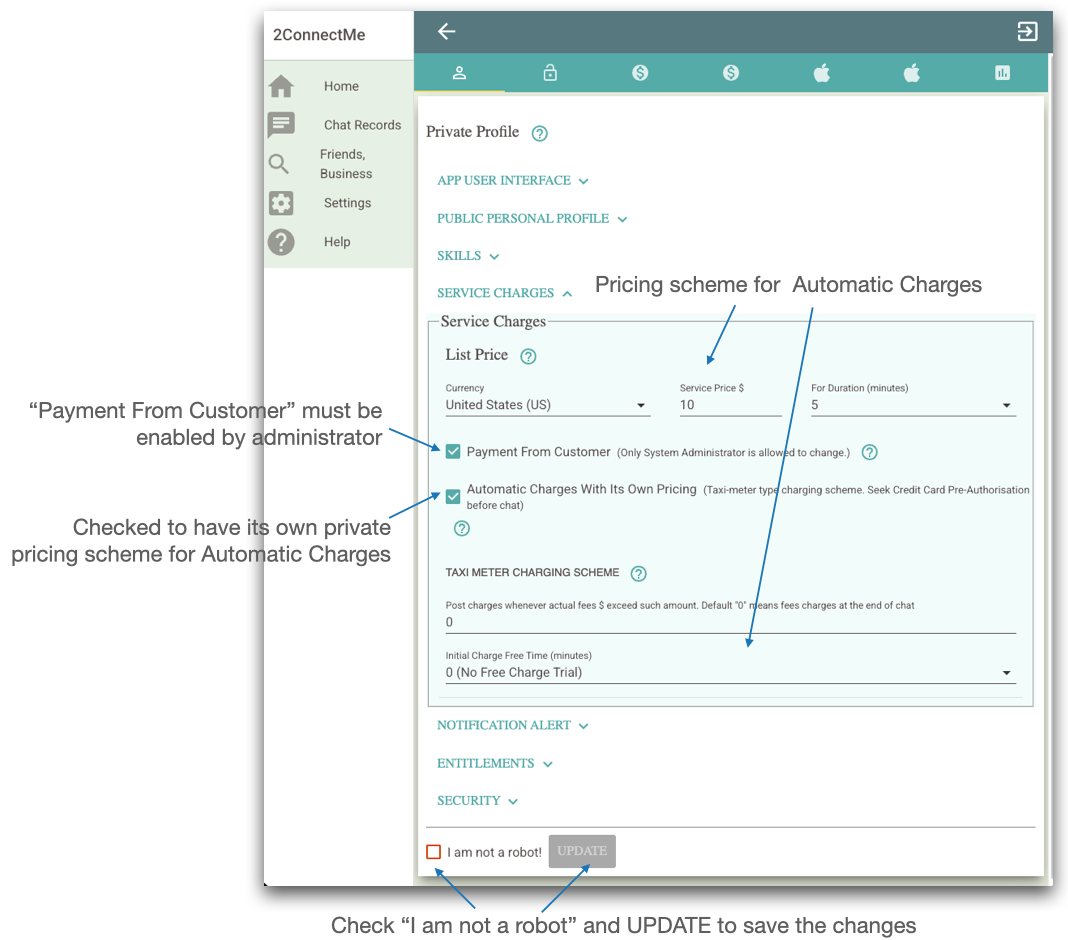
Service staff could also setup his own taxi meter type charging scheme on Private Profile Settings shown below.
To allow service staff to setup his own pricing scheme, administrator must enable “Payment From Customer” option on the Private Profile settings of the service staff as shown below. This setting offers flexibilities to administrator to control if service staff is allowed to receive payment from client.
Setup Pricing Scheme at chat invitation form
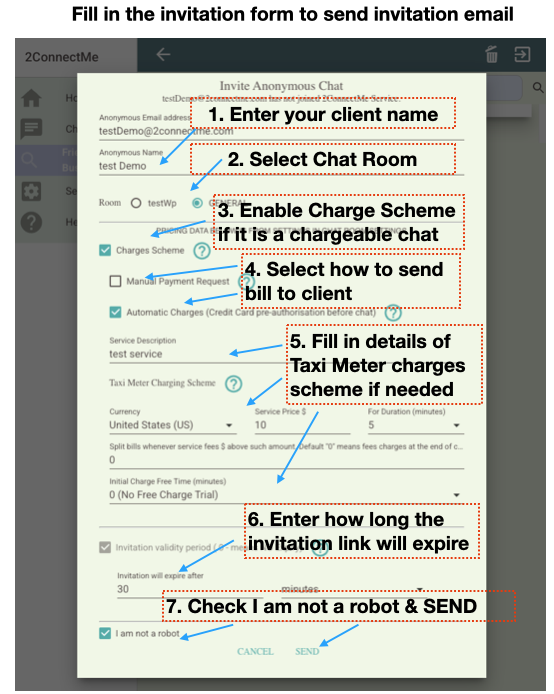
The initial pricing scheme on invitation form above is determined by the pricing scheme of Private Profile and Chat Room according to their precedences. Service staff can finally adjust such inital determined pricing scheme on the invitation form as shown on step 3, 4 & 5 on the figure above.
That means service staff is able to setup any ad-hoc pricing scheme on the invitation form according to his business needs.
Charging Controls on Automatic Charges
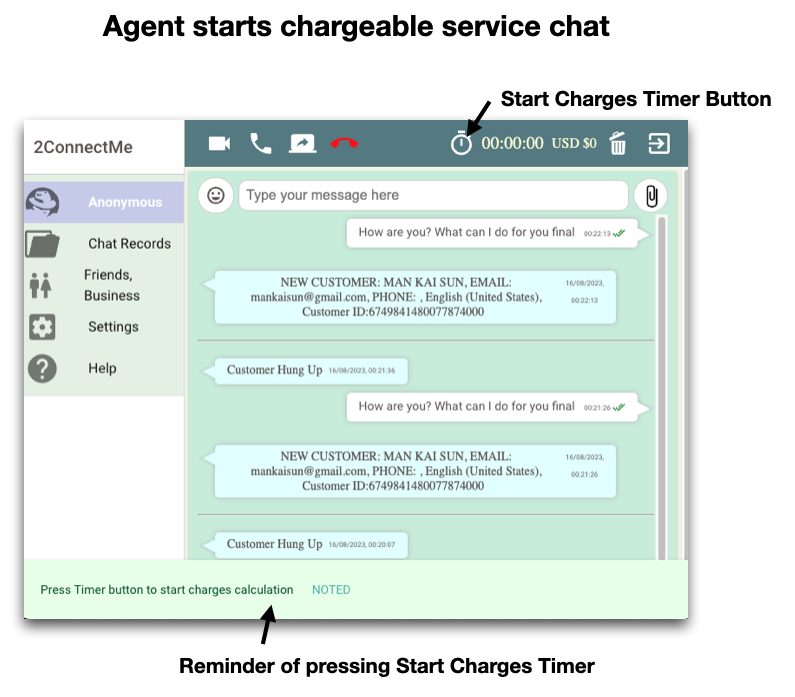
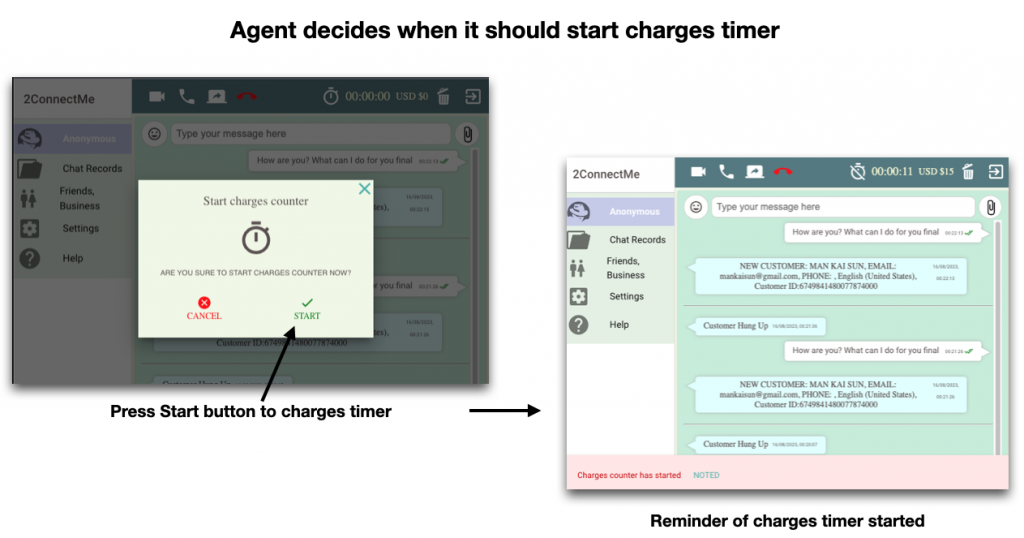
Start Charger Timer
When both service staff agent and the client can launch video chat successfully, service staff can start charging by pressing Start Charger timer button  in the Agent Chat app below.
Stop / Pause Charger Timer
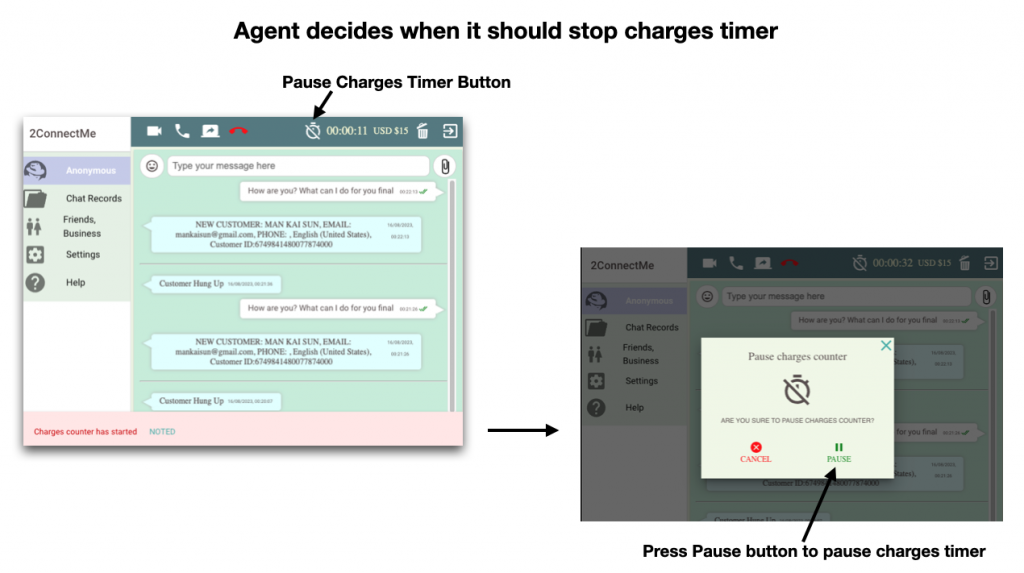
Agent can pause the charger timer by pressing the STOP / PAUSE charger timer button.
Manual Payment Request
Charging Scheme
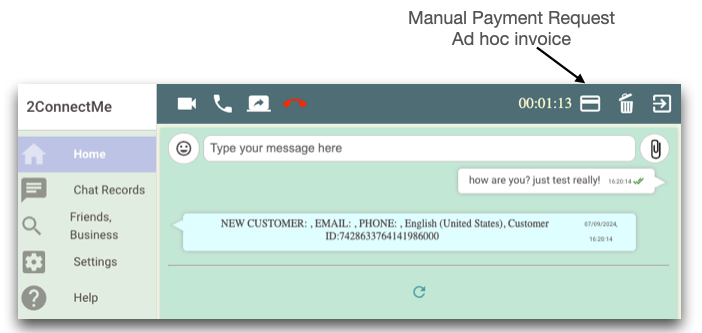
This is an ad hoc billing to client during live chat. Service staff can issue an payment request to client either at the beginning or at the end of chat. It is highly recommended service fees should be paid by client before any consultation chat starts.
Similar to Automatic Charges settings, the Manual Payment Request could be setup in 3 different settings with precedence as follows.
- Invitation Form. Details here.
- Agent Private Profile. Details here.
- Chat room level. Details here.
Charging Controls on Manual Payment Request
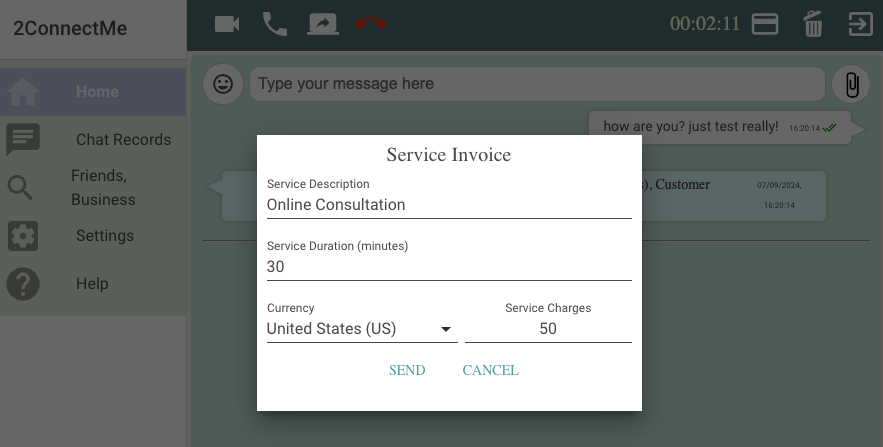
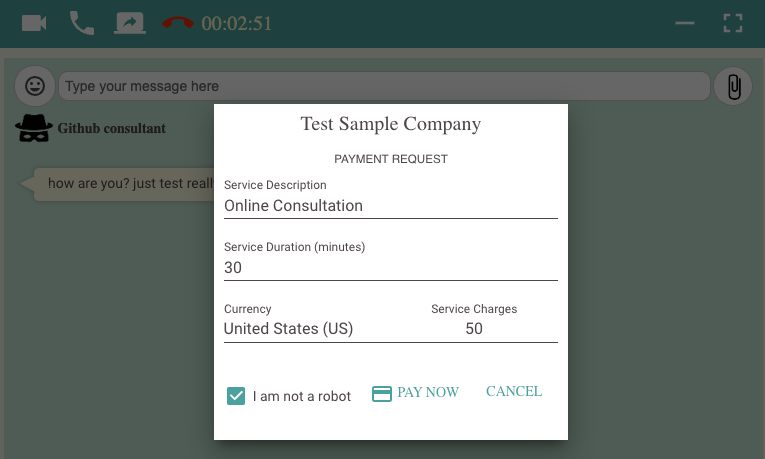
After successfully chat connection with client, service staff agent phone is with a “Credit Card” button. Such “Credit Card” button will triiger an invoice pop up to let service agent to input the details as follows.
Credit Card – Payment Request from service staff
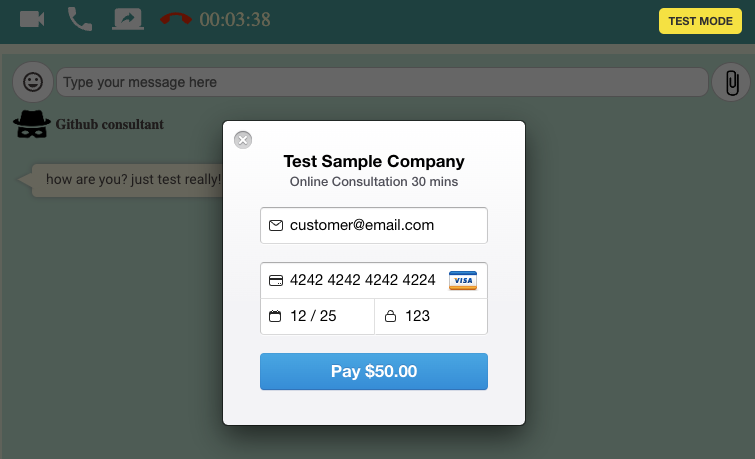
Client Invoice Payment
Client will be prompted to ask the credit card payment for such invoice.
Service staff received service fees
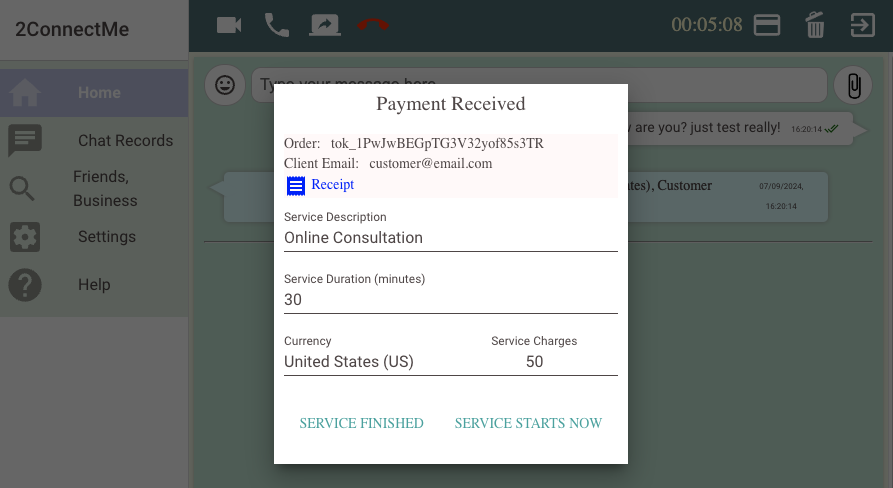
Service staff agent will be prompted of service fees received. Service staff may either press
- Service Finished button which stops the current timer and prompt chat finished.
- Service Starts button which triggers timer starts to count down from the duration having been paid by the client.
Consultation Invitation
Send consultation meeting invitation email to the client through Friends / Business menu. Details here.
Get Paid
Pricing
For the revenue of online service, 2ConnectMe will take 3% of the revenue paid by your clients.
For the revenue of physical goods / commodities, 2ConnectMe wil take 1% of revenue paid by your clients
Besides, please take note that service staff is responsible for the service provided and the fees of online payment processing and charges on your revenue. Details here.
Lead time for receiving service revenue
If the administrator account has linked with Stripe with 2ConnectMe. The revenues, after deducting the 2ConnectMe service fees described above, i.e. 3% for online service and 1% for physical goods, wil be deposited to such administrator stripe account right after payment made by the clients in real time. Details here.
If administrator account has not linked with Stripe with 2ConnectMe, The revenues, after deducting the 2ConnectMe service fees described above, i.e. 3% for online service and 1% for physical goods, wil be deposited to your stripe account by 7 business days.
Video Recording
Start Recording
On desktop Windows, Mac and Linux Ubuntu, Agent is able to record the video chat with prior consent from client.
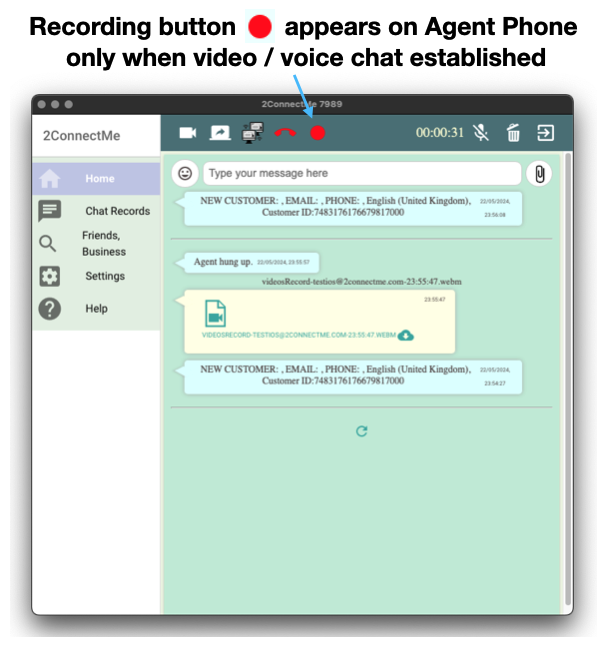
Obtain your client consent for video recording

Agent Screen Selection for Recording
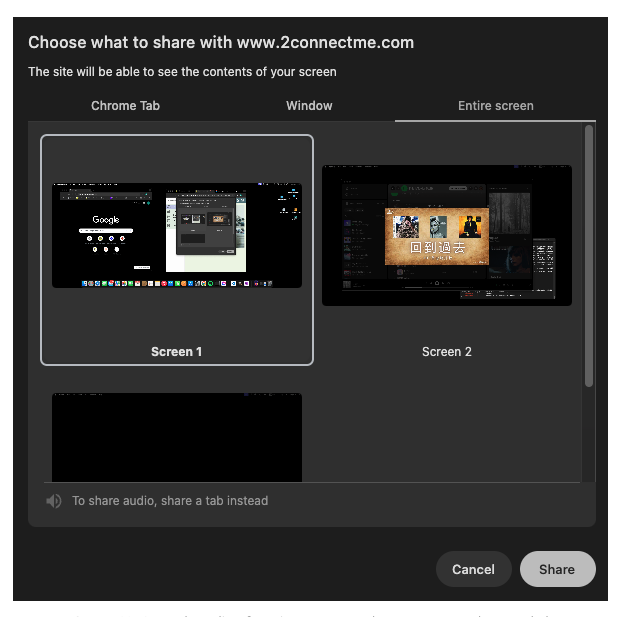
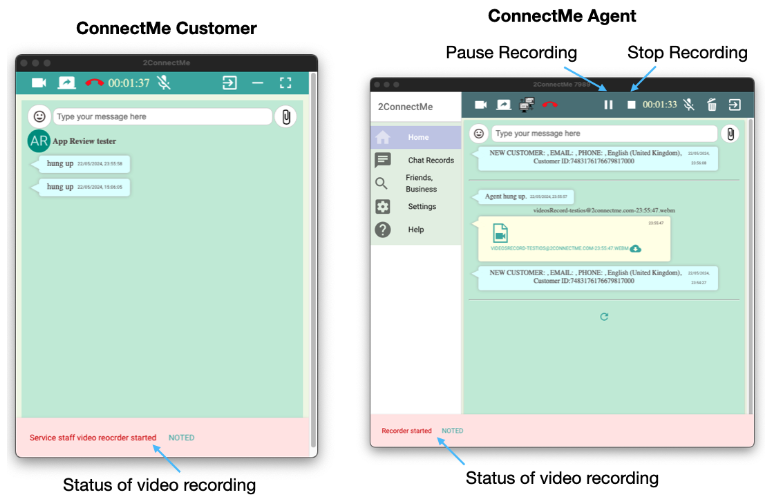
Start, Pause & Stop Recording
After selection of screen, the recording happens and agent is able to pause, stop recording with the
 buttons as shown below.
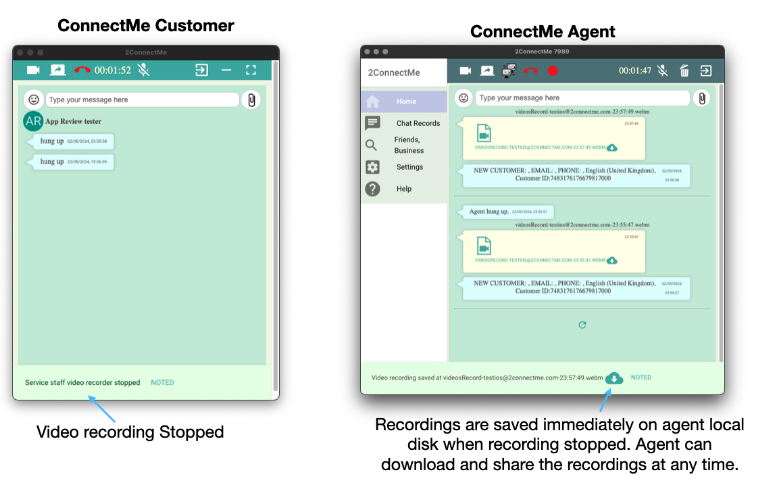
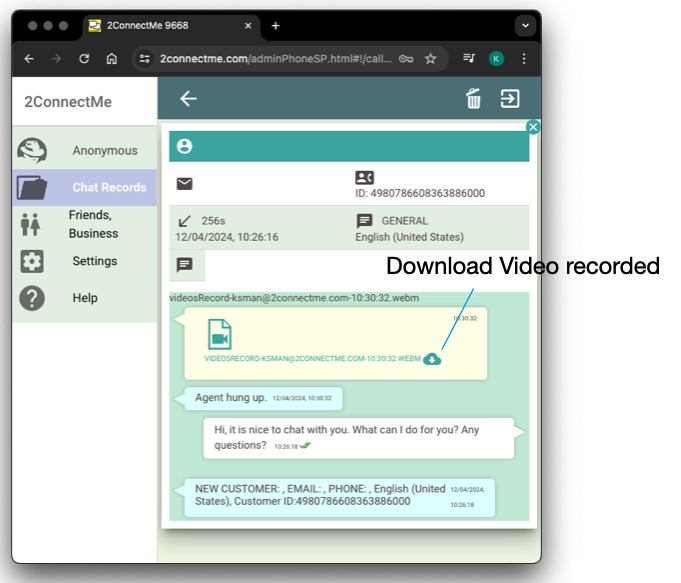
Download videos recorded
During the video chat, agent is able to Pause, Stop and Resume recording at his own needs. Whenever the recording is stopped, the video file is immediately avaible for downloading 
in the prompt as shown below. It may be the case that the video recordings could be splitted into multiple files according to the agent “Stop, Start” recording operations.
Video Storage
The videos are stored inside the app local storage. Agent is able to find and download all these video records in the Chat View or Chat Records.
Chat View
In the agent console, just click the  Chat View button to see all the chat records in “Last In First Shown” order. The video record is embbed in the chat history where agent can click the download button to download the video file.
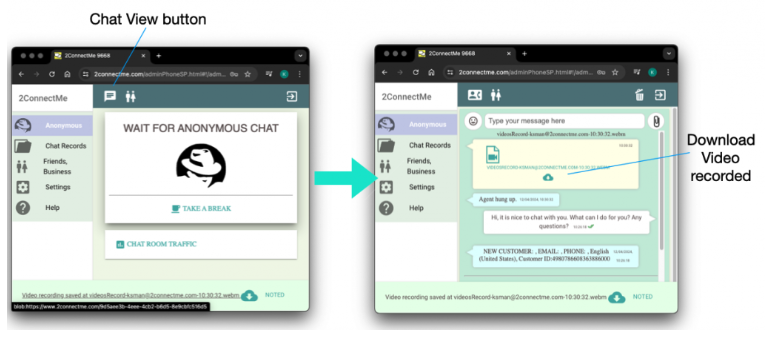
Chat Records
In the Chat Records view, each chat is sorted and the video is embbed in the each of chat record.
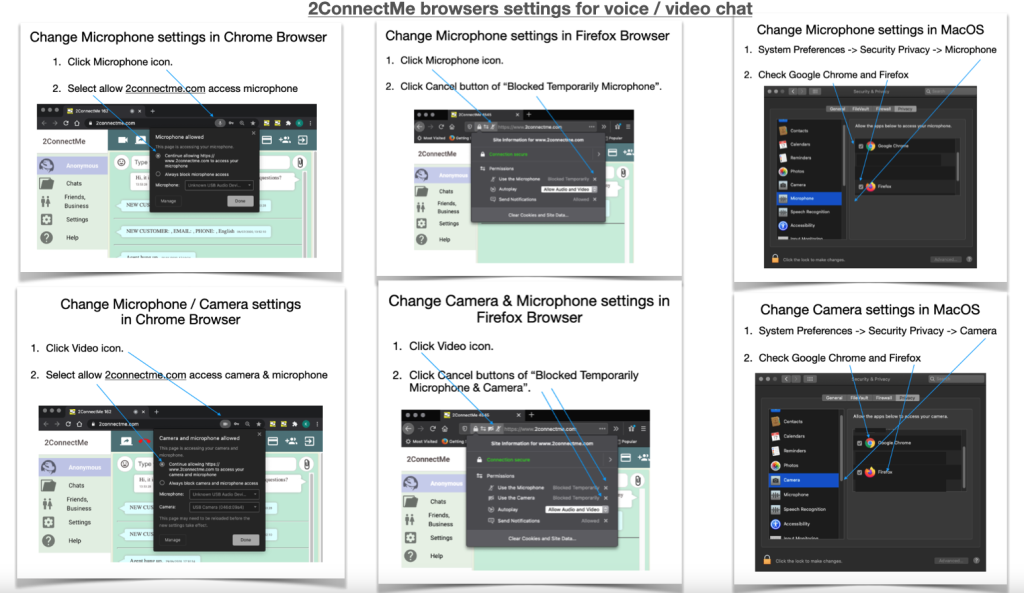
App Permission
Unexpected Offline
Advanced Handling of Network Disconnection and Duration Charges Calculation
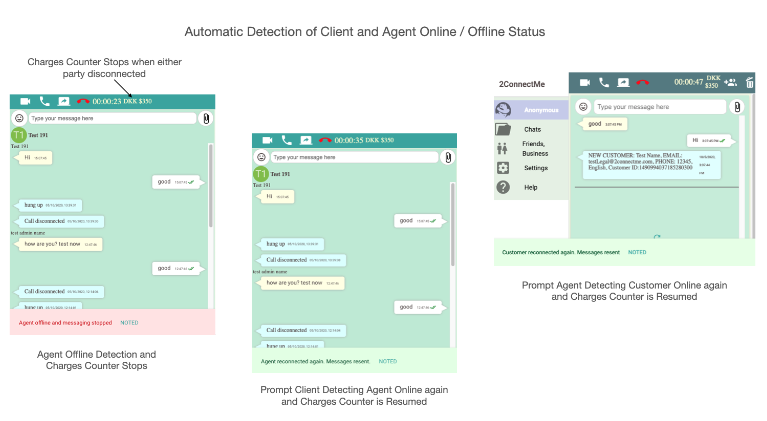
When either network of client or agent is unstable to cause temporarily disconnection, the charging meter will stop counting. The charging meter will be resumed when both client and agent get online again. 2ConnectMe will not trigger to charge the client unless either client or agent presses the RED hangup button or disconnected offline for more than 90 seconds (timeout).
When agent or client is offline without reconnection online for more than 90 seconds, 2ConnectMe backend server will trigger to charge the client for the chats AUTOMATICALLY.
Tips of Handling Unstable Network during Chatting
While 2ConnectMe warns both parties if either of them is offline during chatting, agent and client need do nothing and just wait for other party to reconnect online again. There will be prompt to remind client and agent that the other party is offline and online again as screens illustrated below.