Quick Start for Solo user
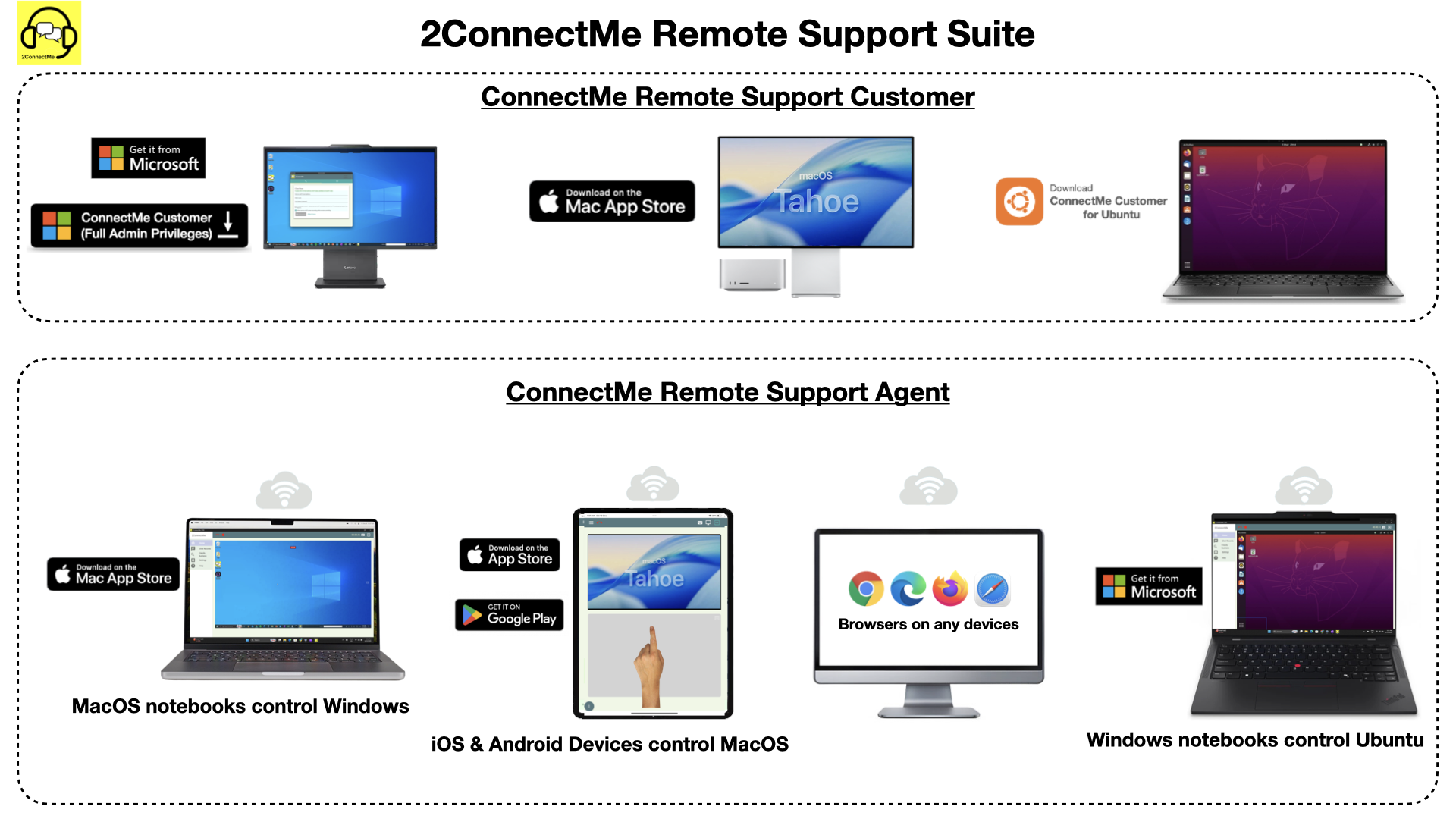
2ConnectMe Remote Support Suite is composed of apps for “Customer” and “Agent” service staff correspondingly. It needs to install these two apps on customer computer and service staff device according to their own platforms as indicated above.
In fact, both “Customer” and “Agent” app are working on browsers. However, if it needs to control remote customer desktop, it must install “Remote Support Customer” app on the customer computers.

Take 15 mins to register “ConnectMe Agent” and setup “ConnectMe Customer” to enjoy the service immediately.

To start consultation, agent could send email with URL link for customer to join the chat while keeping anonymous identity.
Spend 5 mins to register as service staff. It works on normal browser and no installation needed.
“Unattended Mode” allows the local desktop to be controlled without customer interaction.

Try to restore or wait for the online status before timeout, i.e. 90 seconds. The timer and charges will be automatically adjusted accordingly.
“ConnectMe Customer” works on browsers. Or download apps from app store on Mac, Windows & Ubuntu.


Video recording is allowed after obtaining consent from customer during the chat or agreeing to video recording at unattended mode.
Quick Start Steps
- On agent service staff devices, either Mac, Windows deskops, mobile iOS or Android devices, download and get installed “ConnectMe Remote Support Agent” app from either Apple App Store, Microsoft Store or Google Play Store. Or register as Agent through browsers URL link.
- Logon Agent and keep “Online / Waiting for new chat” status of 2ConnectMe agent after successful registration above.
- On another customer desktop, either Mac or Windows, download and get installed “ConnectMe Remote Support Customer” app from Apple App Store or Microsoft Store. In case customer desktop on Linux Ubuntu, please download from 2connectme.com directly.
- Start Remote Control: Launch “ConnectMe Remote Support Customer” app and use the agent email address to connect to service staff agent.
Remote Support Agent app
It only needs registration once for accessing to the services on all the platforms. If you have the account created before, you can switch to “Agent Logon” screen directly from “Agent Registration Screen” at 1st launch of the app as indicated below.
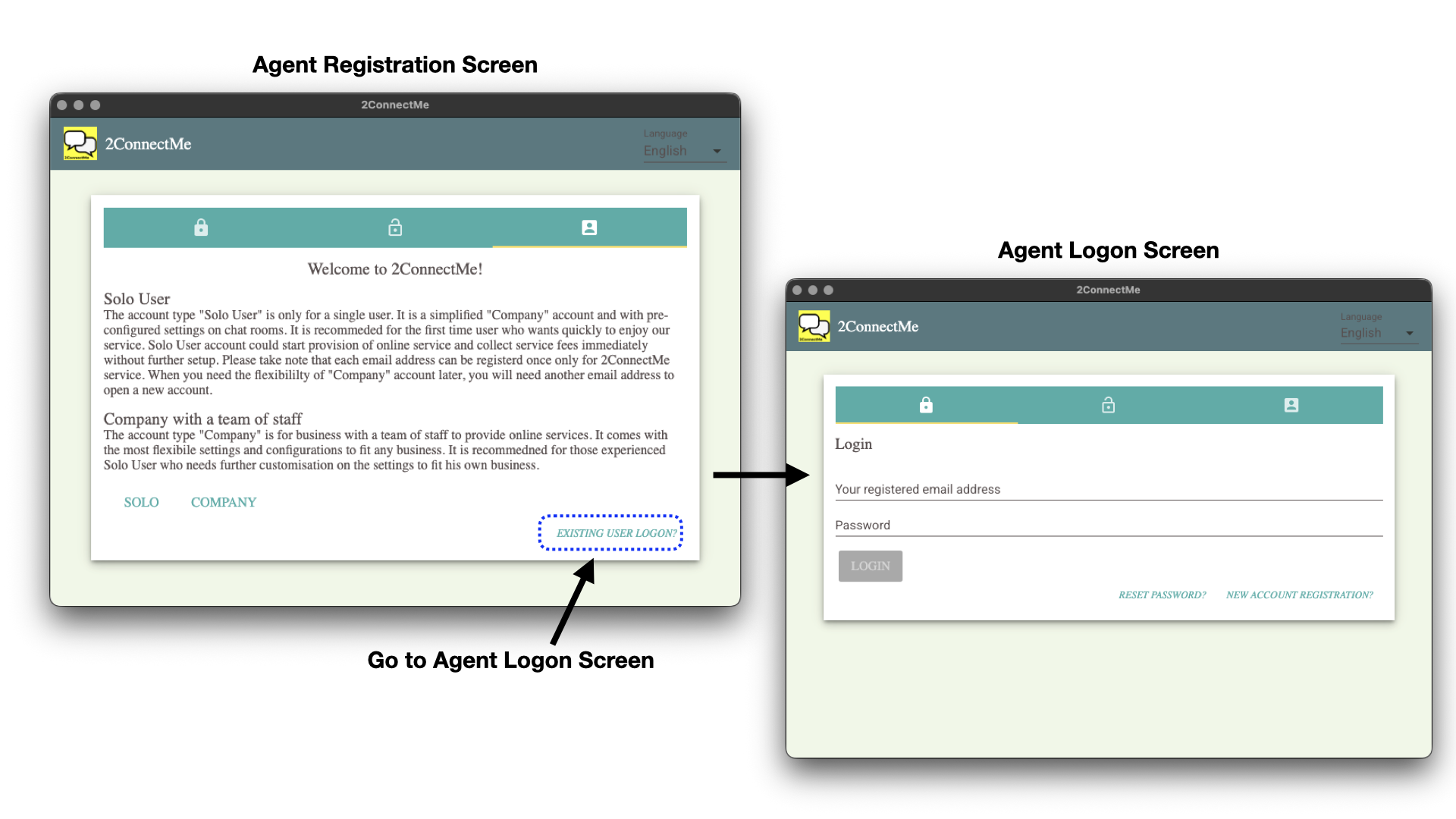
Agent app is also working on browsers. Due to security concerns, it is highly recommended to get this agent app installed on service staff devices.
It should NOT run the app on 3rd party devices, particularly on browsers, to avoid your customer desktops from unauthorised access.
Download “Remote Support Agent”




The videos below illustrate how to get “Remote Support Agent” installed with joining the default Solo – Forever Free plan.
Get “Remote Support Agent” app from Microsoft Store
Get “Remote Support Agent” app from Apple Mac App Store
Get “Remote Support Agent” app on iPad from Apple App Store
Remote Support Customer app
For Microsoft Windows, there is an another download from our own 2connectme.com website in additional to the one from Microsoft store.
Due to secruity concerns, the Customer app from Microsoft store comes with a lot of restrictions on remote controls, particularly, without the priviledge to perform admininstration tasks.
For those Customer users with critical tasks pending for service staff agent to perform, e.g. help install another app on customer computer, just click the button below, with Full Admin Privileges below, to download the app from our 2connectme.com website directly.
Download “Remote Support Customer” app
ConnectMe Customer on browsers (without Remote Control capabilities)