2ConnectMe Video Consult Guest
In order for agent to control remote customer desktop keyboard mouse, customer has to install the “2ConnectMe Video Consult Guest” app from either app store in Microsoft Store for Windows, download from 2ConnectMe website for Windows, Apple App Store for MacOS, download deb binary for GNOME Linux desktop.



Connect to Service Staff
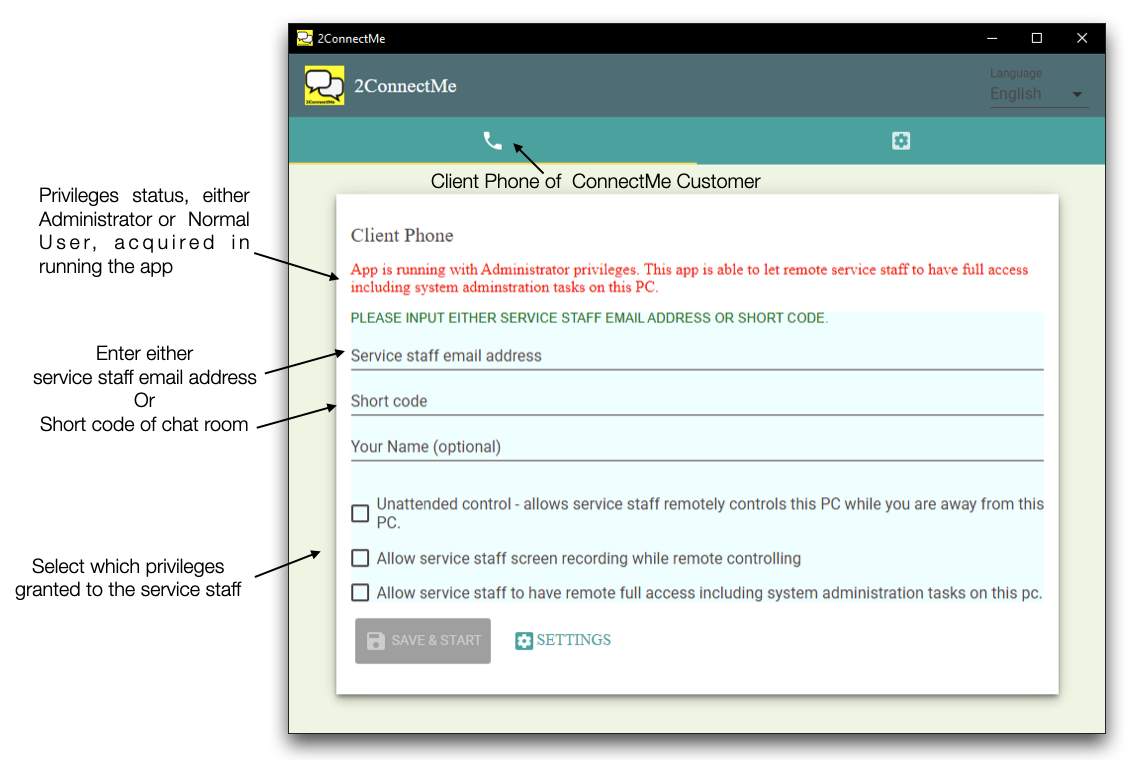
This app lets your client connect to service staff either through Client Phone of 2ConnectMe Video Consult Guest
- service staff email address registered in 2ConnectMe.
- meeting room (short code) corresponding to the chat room.
The Client is required to pre-assign approval needed for service staff, without further asking customer approval during chatting,
- Unattended Control – waiting for service staff to connect for being remotely controlled.
- Screen recording – during remote control, service staff is allowed for recording screen as logs for what have been done on this customer PC.
- System administraton tasks (only effective in Microsoft Windows) – during remote control, service staff is allowed to perform on this customer PC such as handling User Logon screen, User Account Control (UAC) prompts, Task Manager of Windows.
For normal keyboard mouse control on customer screen, it works alright under a nomal priviledge rights of app in Windows.
Due to security constriants from Microsoft Windows, the customer have to “Run the App as Administrator” if sevice staff requires to access security sensitive app, e.g. Task Manager. Otherwise, the app will be forced to stop working.
2ConnectMe Video Consult Guest for Windows
2ConnectMe Video Consult Guest is available for download either from Microsoft Store or directly from 2ConnectMe website. The app from Microsoft Store is restricted from performing adminstration tasks on customer PC.
2ConnectMe Video Consult Guest App from Microsoft Store
Due to security concerns, the app from Microsoft Store is restricted from perform administration tasks, e.g. Task Manager and User Account Control (UAC) prompts, on the PC. Such app is the most safe for a normal user to share the PC control with service staff. Therefore, it is mostly suitable for a new customer just to have a live video chat first time with remote service staff while sharing his keyboard mouse control. In case of any User Account Control (UAC) prompts, user can handle such prompts directly in front of PC while chatting with the service staff.
2ConnectMe Video Consult Guest App from 2ConnectMe website
ConnectMe Customer App downloaded from 2ConnectMe, i.e. https://www.2connectme.com/index.php/download, is with the highest flexibility to grant whatever privileges needed for service staff operation on customer PC, e.g. Logon Screen, User Account Control (UAC) prompts, or any tasks requiring administrator priviledges. It is mostly suitable for the experienced user who requires service staff to work on administrator tasks on his PC.
Settings of ConnectMe Customer
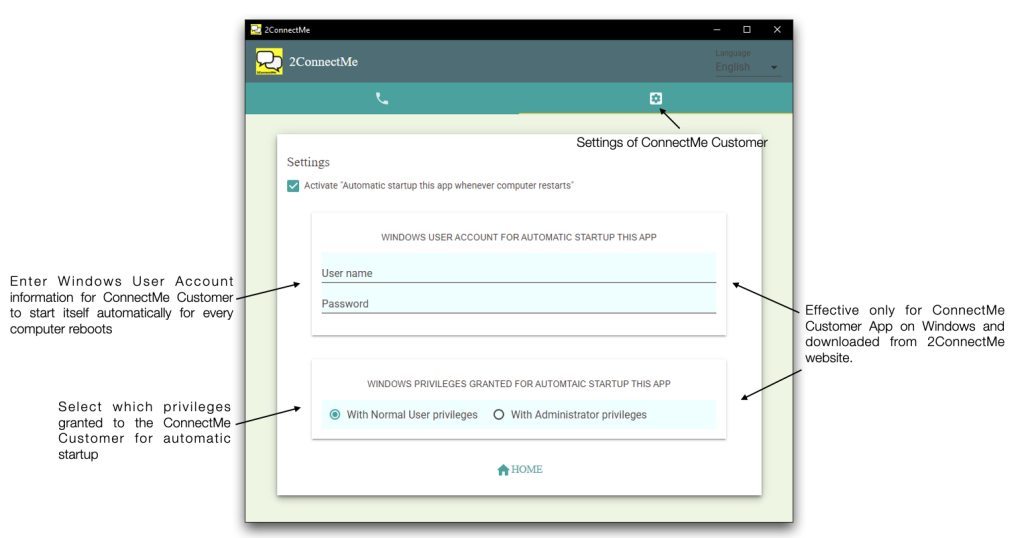
The settings is mainly for setup the automatic startup the app whenever PC reboots.
Automatic Startup whenever computer reboots
The behaviours varied on different platforms.
- 2ConnectMe Video Consult Guest for Windows downloaded from 2ConnectMe website
- With Windows user account information, ConnectMe Customer startup automatically whenever computer reboots.
- Even without / incorrect user account information, ConnectMe Customer startup automatically only when user logo manually.
- 2ConnectMe Video Consult for Windows from Microsoft Store
- “Automatic Startup” function is unavailable.
-
macOS / Ubuntu desktop
- 2ConnectMe Video Consult startup automatically only after user logon manually.
Service staff email address
“2ConnectMe Video Consult Guest” app is designed, by default, that client is able to use service staff email address for instant connection. No settings is required. Such connection will let your client go to the service staff private chat room “GENERAL”.
If service staff would like not to receive chat from this particular customer anymore, he may add this customer to the black list (trash bin button) in the normal chat screen.
Meeting Room / Short code (Access Number in settings)
Meeting Room / Short code, e.g. Access Number in settings, is like a chat room number and provides a convenient means, instead of long URL link, for customer to connect to service staff. Both public chat room and public chat room are with their own corresponding “Access Number”.
By default, such “Access Numbers” are not activated. You have to enable them individually whenever it is in need.